


Download MoviePrint – free video thumbnail generator, screenshot tool
Overview
MoviePrint is a lightweight desktop utility designed for anyone who works with video files and needs a fast, reliable way to generate screenshots, thumbnails, or printable frame grids. The program focuses on speed and flexibility, allowing users to drag‑and‑drop a movie file and instantly receive a customizable image sheet. Whether you are a video editor looking for quick reference frames, a content creator preparing preview mosaics for social media, or an educator who needs visual excerpts for lecture slides, MoviePrint offers a straightforward workflow without the need for a bulky video editing suite.
The tool supports batch processing, meaning you can queue several movies and let the software extract frames in the background while you continue working on other tasks. In addition, each thumbnail can be saved individually or exported as a single composite image, and the application stores metadata that enables later adjustments without re‑rendering the entire set. While the feature set is rich, the interface remains clean and intuitive, making it accessible for beginners yet powerful enough for power users.
The only notable trade‑off is a relatively high memory footprint during large batch jobs, but for most typical workloads the performance remains snappy. Overall, MoviePrint stands out as a free, secure, and constantly updated solution for generating video screenshots on Windows and macOS.
Key Features
- Drag‑and‑drop video import for instant processing.
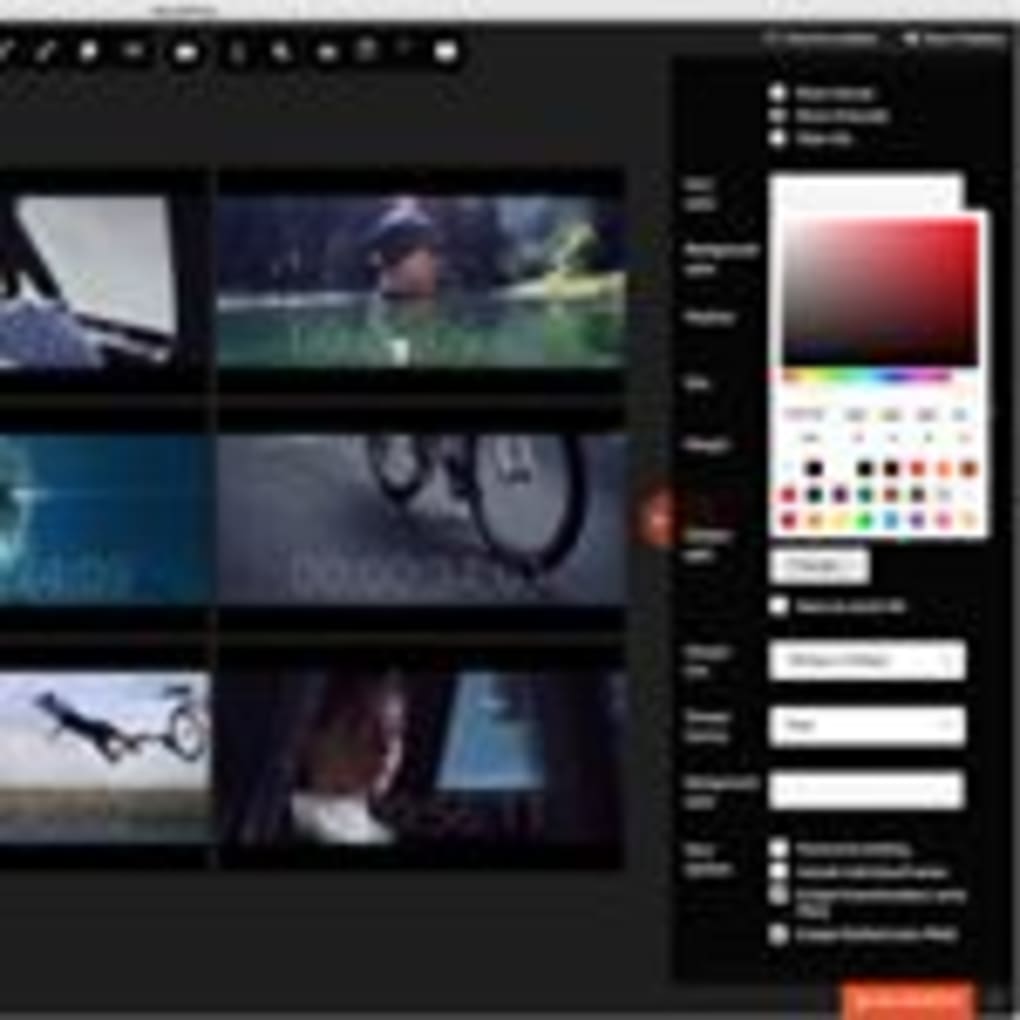
- Customizable grid layout – choose rows, columns, or preset paper sizes.
- Batch processing – add multiple movies and extract frames simultaneously.
- Precise timeline control with start and end reference points.
- Resizable preview window that displays the entire thumbnail sheet.
- Individual or collective thumbnail export in PNG, JPEG, or BMP.
- Embedded metadata for later re‑editing without re‑rendering.
- Support for popular video codecs (MP4, AVI, MKV, MOV, etc.).
- Free version with no hidden fees; optional paid upgrade for advanced batch scheduling.
- Secure processing – no internet connection required after download.
The feature list above reflects MoviePrint’s emphasis on flexibility and speed. Users can define the exact moment they want to capture by scrubbing the timeline or entering frame numbers directly. The grid builder automatically adjusts thumbnail dimensions to maintain aspect ratio, preventing distorted images.
For educators, the ability to export a printable PDF of selected frames is especially handy, while video editors appreciate the option to save each frame as a separate high‑resolution file for further manipulation in compositing software. The batch engine is multithreaded, which means that on a modern CPU the tool can handle dozens of movies in parallel, making large archival projects far less time‑consuming. Even though the free version includes all core capabilities, the optional upgrade unlocks priority rendering queues and a command‑line interface for integration into automated pipelines.
Installation & Usage Instructions
Getting started with MoviePrint is straightforward. First, download the installer from the official website – the file is available for both Windows (64‑bit) and macOS (Intel/Apple Silicon). Run the installer and follow the on‑screen prompts; the process typically takes less than two minutes.
Once installed, launch the application from the desktop shortcut or the start menu. The main window features a large drop zone where you can drag a video file, or you can click the “Browse” button to locate a file manually. After the video loads, a playback bar appears below the preview area, allowing you to set the start and end points for the thumbnail extraction.
Use the numeric fields to specify the number of rows and columns, or select a preset paper format (A4, Letter, etc.) from the drop‑down menu. When you’re ready, click “Generate” and the software will render the grid in the background. For batch jobs, click the “Add to Queue” button and repeat the steps for each additional movie; the queue manager at the bottom of the window shows progress for each task.
Compatibility
MoviePrint runs on Windows 10/11 (64‑bit) and macOS 10.15 (Catalina) or later, including support for Apple Silicon via Rosetta 2. The application requires at least 4 GB of RAM, though 8 GB is recommended for large batch operations. No additional codecs need to be installed, as the built‑in FFmpeg library handles most common video formats out of the box.
Saving and Re‑editing
After generation, you can export the thumbnail sheet in several ways. Choose “Save As Image” to store a single PNG or JPEG file, or select “Export PDF” for a printable document. If you need individual frames, click “Export Individual Thumbnails” and the program will create a folder containing each image named by timestamp. All exported files embed a small XML side‑car file that records the original settings (grid size, timestamps, video source). When you reopen MoviePrint, you can import this side‑car file to restore the project and adjust parameters without starting from scratch.
Pros, Cons, and Frequently Asked Questions
Pros
- Fast, real‑time thumbnail generation.
- Highly customizable grid layout.
- Robust batch processing for multiple movies.
- No internet connection required after download – fully offline.
- Free core version with optional paid upgrades.
Cons
- Higher memory usage during large batch jobs.
- Limited to Windows and macOS – no native Linux build.
- Advanced automation requires the paid upgrade.
FAQ
-
Can I use MoviePrint on Linux?
Currently MoviePrint is only compiled for Windows and macOS. Linux users can run the Windows version via Wine, but official support is not provided.
-
Is there a limit to the number of thumbnails per grid?
The free version allows up to 10 × 10 (100) thumbnails per grid. The paid upgrade removes this restriction.
-
What video formats are supported?
MoviePrint supports all major containers: MP4, AVI, MKV, MOV, WMV, and FLV, thanks to its built‑in FFmpeg library.
-
Can I edit the generated thumbnails after export?
Yes. Each exported image retains its original resolution, and the side‑car XML file lets you re‑open the project to adjust grid size or timestamps without re‑rendering.
-
Is the software safe and free of malware?
MoviePrint is signed with a digital certificate, distributed via a secure HTTPS website, and does not contain adware or telemetry components.
Review Summary: MoviePrint delivers fast, high‑quality frame extraction with a clean UI and powerful batch capabilities. While it leans on the heavier side of RAM usage, the free feature set makes it an excellent choice for video professionals and hobbyists alike.
Conclusion & Call to Action
In the crowded landscape of video‑analysis tools, MoviePrint distinguishes itself by combining speed, flexibility, and a genuinely free offering. Its drag‑and‑drop workflow, granular timeline control, and batch processing engine make it a practical choice for anyone who needs to generate movie prints quickly and reliably. Although the application’s resource consumption can spike during massive batch jobs, the trade‑off is acceptable given the quality of the output and the absence of hidden fees. If you regularly create thumbnails for presentations, social media, or archival purposes, downloading MoviePrint today will streamline your workflow and eliminate the need for expensive, feature‑bloat video editors.
Ready to give MoviePrint a try? Click here to download the free version and start generating professional‑grade video screenshots in seconds. For power users who need unlimited grids and advanced automation, consider the paid upgrade – it unlocks premium batch scheduling and removes the thumbnail count ceiling. Experience a secure, offline‑first tool that keeps your video assets private while delivering instant visual results.







